Mastering Data Cleaning in Excel
Data cleaning is the process of identifying and correcting errors, inconsistencies, and inaccuracies in datasets to ensure they are accurate, reliable, and ready for analysis. It involves a series of steps, from removing duplicates and handling missing values to standardizing data formats and correcting errors.
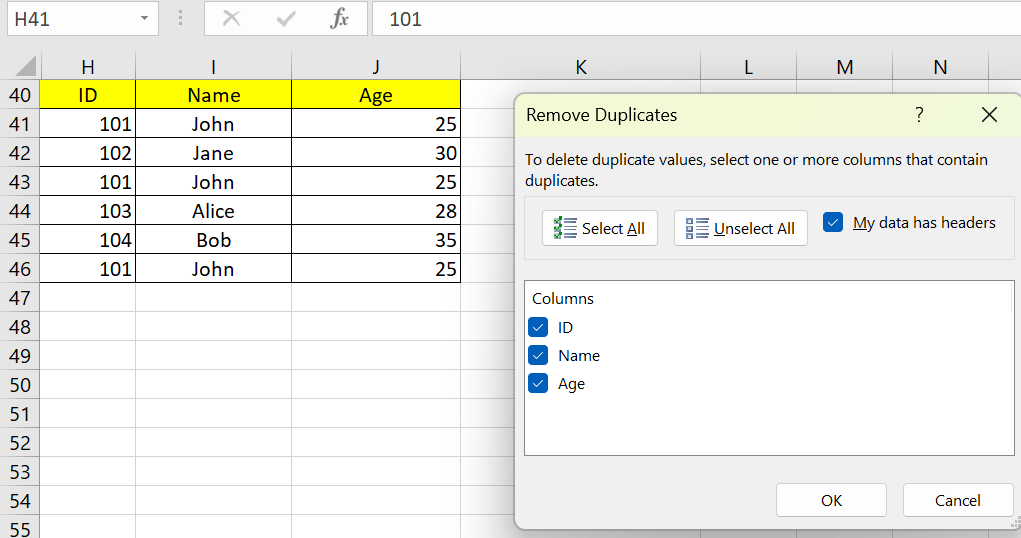
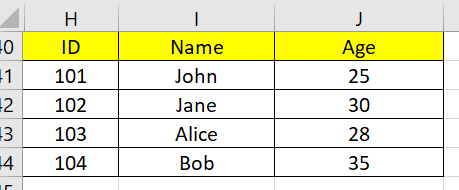
- Removing Duplicates:
- REMOVE DUPLICATES: Removes duplicate rows from a dataset.
2. Handling Missing Values:
- IFERROR: Replaces error values with a specified value.
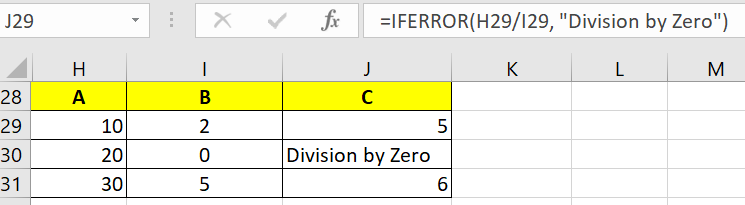
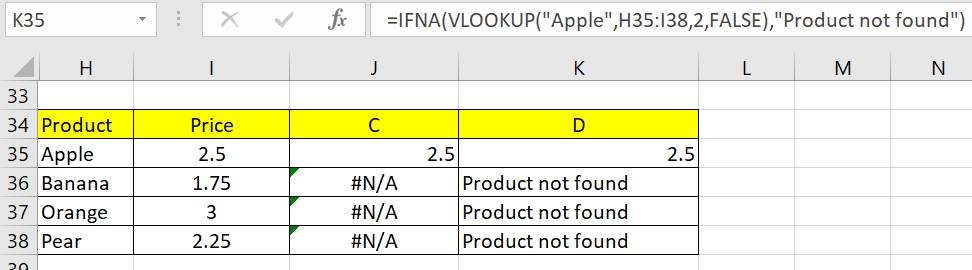
IFNA: Replaces #N/A error values with a specified value.
ISBLANK : This function determines whether a cell is empty or not and returns TRUE if it is; otherwise FALSE. For example, =ISBLANK(E2) returns TRUE if A1 is empty, and FALSE otherwise.

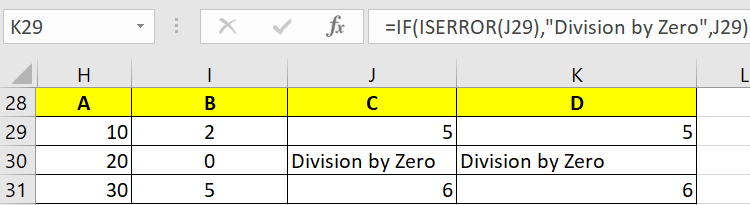
- IF, ISERROR: Used in combination to handle missing values by imputing them with appropriate values.
3. Standardizing Data Formats:
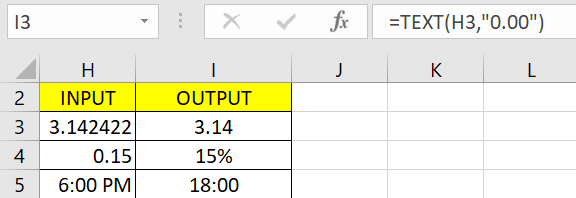
- TEXT: Converts a value to text in a specified format. From the below example, I use the example of converting the input into number format, percentage and hour format.
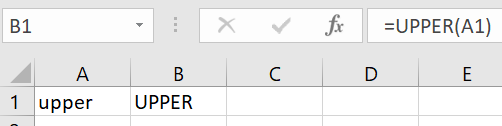
UPPER : This function converts text to all uppercase letters. For example, =UPPER("Hello") returns “HELLO”.
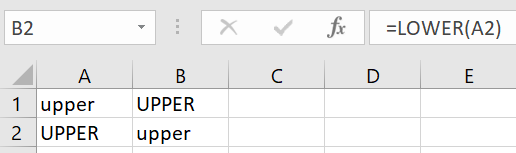
- LOWER : This function converts text to all lowercase letters. For example,
=LOWER("Hello")returns “hello”.
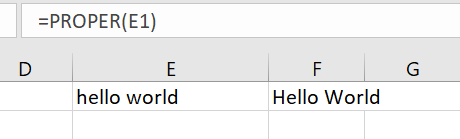
- PROPER : This function capitalizes the first letter of each word in a text string. For example,
=PROPER("hello world")returns “Hello World”.
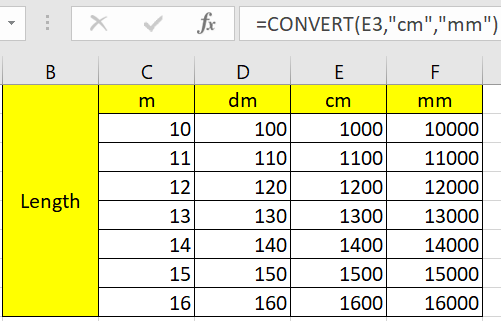
- CONVERT: Converts a number from one measurement system to another.
4. Correcting Errors:
- IFERROR: Handles errors by replacing them with specified values or actions.
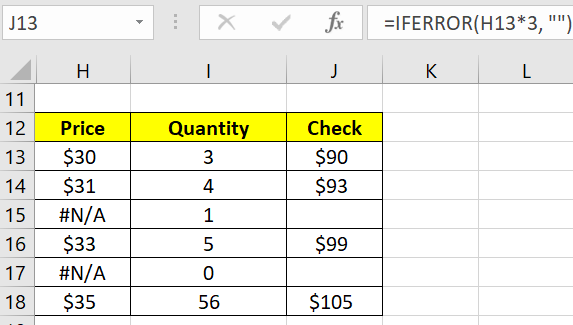
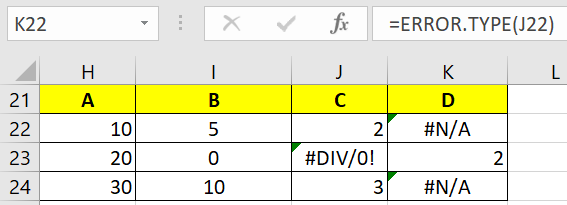
- ERROR.TYPE: Returns a number corresponding to the type of error value.
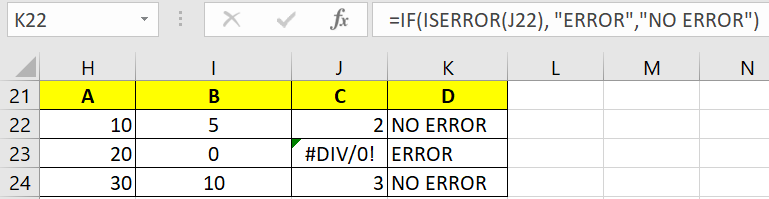
- ISERROR: Checks if a value is an error.
5. Parsing and Transforming Data :
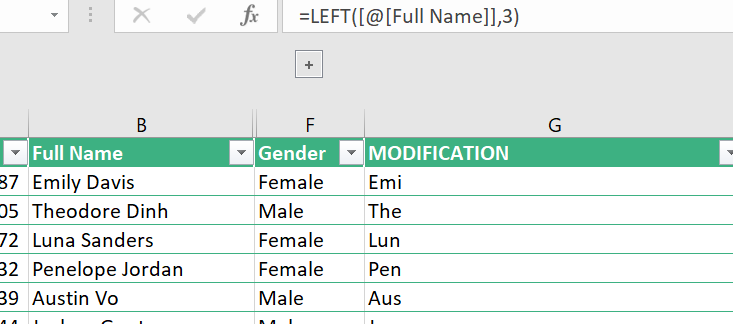
- LEFT: This function returns the leftmost characters of a text string, given a number of characters. For example,
=LEFT("Full Name",3)returns what you see in column G.
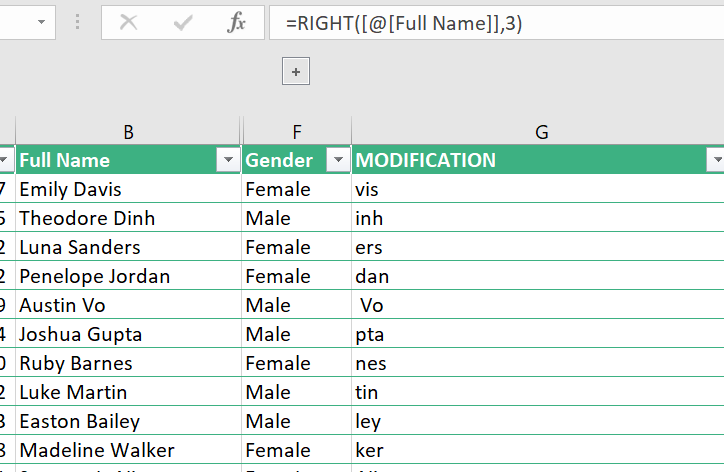
- RIGHT : This function returns the rightmost characters of a text string, given a number of characters. For example,
=RIGHT("Full Name",3)returns what you see in column G.
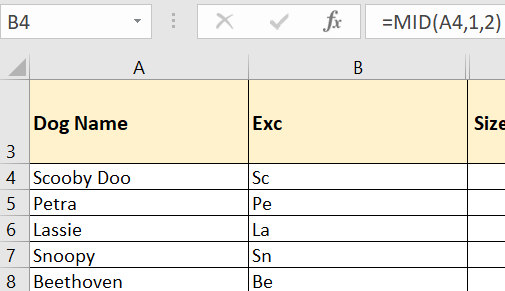
- MID : this function extracts specific text from within a larger string, based on the starting position and length you specify. It’s great for pulling out precise data from text strings.
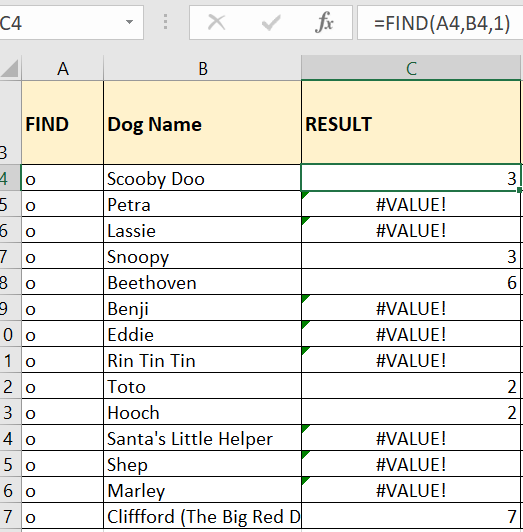
- FIND, SEARCH : Locates the position of a substring within a string, with notes that SEARCH is not case sensitive while FIND is case sensitive.
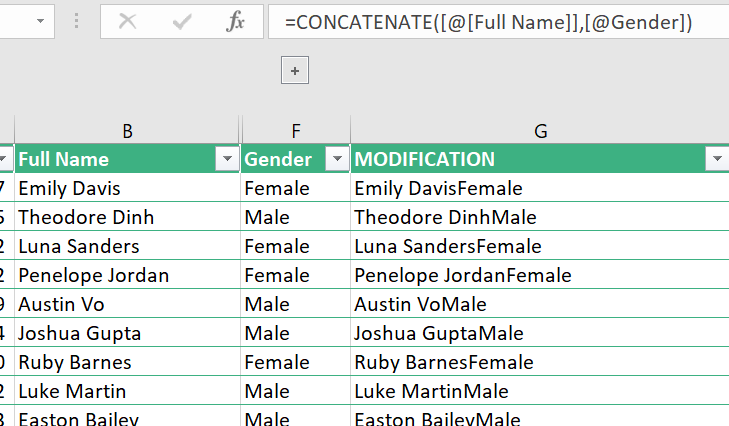
CONCATENATE : This function joins two or more text strings into one. For example, =CONCATENATE("Hello"," ","World") returns “Hello World”.
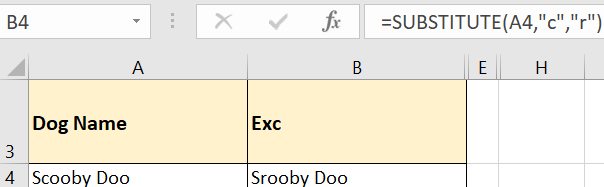
- SUBSTITUTE: Replaces occurrences of specified text within a string.